


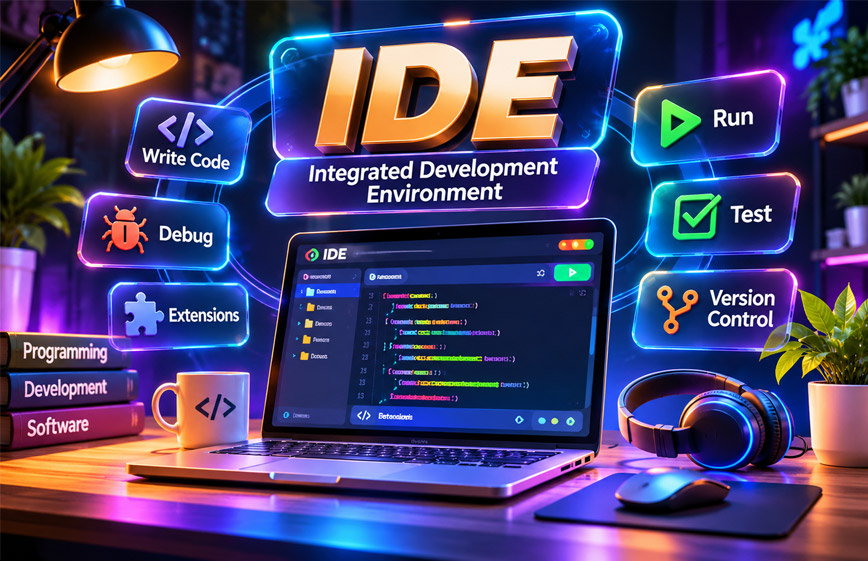
IDE stands for Integrated Development Environment.
It is software that gives programmers many useful coding tools in one place.
Developers can use an IDE to write code, run programs, find errors, test software, and manage project files.
This guide explains how an IDE works, its main features, types, benefits, drawbacks, and popular examples.
What Is an IDE?
An IDE is software made for programming.
It brings many development tools together in one place.
A developer can write code, run it, build the program, and check errors without opening many different apps.
A normal IDE usually includes:
- A code editor
- Build tools
- A debugger
- Project tools
Some IDEs also include or connect to a compiler or interpreter.
Developers can use IDEs for:
- Websites
- Mobile apps
- Desktop software
- Games
- Scripts
- Business software
The main idea is simple.
An IDE gives developers one place to do most of their coding work.
How Does an IDE Work?
An IDE connects different programming tools together.
First, the developer creates or opens a project.
Then they write code in the built-in editor.
While typing, the IDE may show code in different colors, suggest code, and show possible errors.
The developer can then run or build the program.
If something is wrong, the debugger can help find the problem.
An IDE can also keep files, libraries, settings, and other project items organized.
Some tasks that normally need terminal commands can also be done with buttons or menus.
For example, an IDE may help users:
- Build a project
- Run tests
- Install packages
- Start debugging
- Use Git
- Generate code
- Run framework commands
The exact process depends on the IDE and programming language.
Main Features of an IDE
An IDE normally includes several useful coding tools.
Code Editor
The code editor is where developers write and edit code.
It works like a normal text editor but has extra coding features.
It may include:
- Multiple tabs
- Search and replace
- Auto-indent
- Code formatting
- Line numbers
- Error highlighting
- Code navigation
The code editor is usually the main part of the IDE.
Syntax Highlighting
Syntax highlighting shows different parts of code in different colors.
For example:
- Keywords
- Variables
- Functions
- Strings
- Comments
may all appear in different colors.
This makes code easier to read.
It can also help developers notice mistakes.
Code Completion
Code completion suggests code while the developer types.
The IDE may suggest:
- Variable names
- Functions
- Classes
- Methods
- Parameters
- Library features
This can save time and reduce typing mistakes.
Microsoft tools use a feature called IntelliSense for code suggestions and related help.
Other IDEs may use similar systems.
Compiler and Interpreter Support
Programming languages do not all work the same way.
Some use a compiler.
A compiler changes source code into a form the computer can run.
Other languages use an interpreter.
An interpreter reads and runs the code.
An IDE may include these tools or connect to ones already installed on the computer.
This lets developers run or build programs inside the IDE.
Debugger
A debugger helps developers find problems in code.
It can pause a program while it is running.
The developer can then check what is happening.
Common debugger tools include:
- Breakpoints
- Step-by-step running
- Variable checking
- Call stack
- Watching values
This can help find where a problem starts.
Build Tools
Build tools help prepare code so it can run as a program.
They may handle:
- Compiling code
- Packaging apps
- Managing dependencies
- Running build commands
- Preparing release files
An IDE can connect these tasks with the rest of the project.
This means developers may not need to run every command by hand.
Project and File Management
Software projects can have many files and folders.
An IDE normally shows them in a file tree.
This may include:
- Source files
- Libraries
- Images
- Settings files
- Classes
- Build files
- Project settings
This helps developers keep the project organized.
Version Control
Many IDEs support version control tools such as Git.
Version control helps developers track changes in code.
Common actions include:
- Commit
- Push
- Pull
- Create branches
- Merge branches
- View changes
- Check old versions
These tasks can often be done inside the IDE.
Built-In Terminal
Many IDEs include a terminal.
This lets developers run commands without leaving the IDE.
The terminal can be used for:
- Git commands
- Package managers
- Framework commands
- Build tools
- Local servers
This is useful for developers who still like using command-line tools.
Refactoring Tools
Refactoring means improving code without changing what the program does.
IDE refactoring tools can help with:
- Renaming variables
- Renaming classes
- Moving code
- Finding references
- Extracting methods
These tools are very useful in large projects.
Testing Tools
Some IDEs include testing tools.
Developers may be able to run tests inside the IDE.
The IDE can show:
- Passed tests
- Failed tests
- Error messages
- Test results
Some IDEs also allow users to debug failed tests.
Plugins and Extensions
Plugins add extra features to an IDE.
They may add support for:
- Programming languages
- Frameworks
- Databases
- Git tools
- Themes
- Testing tools
- Cloud services
- AI tools
This lets developers change the IDE based on their needs.
History of IDEs
Programming tools were not always in one place.
Early programmers often used separate tools for writing, compiling, and running code.
Dartmouth BASIC in 1964 is often described as an early system that combined editing, compiling, and running code.
Maestro I, made in the 1970s, is often described as an early commercial IDE.
Later, IDEs became more common on personal computers.
Turbo Pascal became popular in the 1980s because developers could write, compile, and debug code in one place.
Microsoft released Visual Basic in 1991.
It also gave developers visual tools for building user interfaces.
Later, Visual Studio brought many Microsoft development tools together.
Open-source IDEs also became popular.
Eclipse became a well-known free IDE in the early 2000s.
Today, modern IDEs may include cloud tools, plugins, and AI features.
The main idea is still the same: keep useful development tools in one place.
Types of IDEs
Different IDEs are made for different types of work.
Language-Specific IDEs
These IDEs mainly focus on one programming language.
For example, PyCharm is mainly for Python.
A language-specific IDE may give better:
- Code completion
- Error checking
- Refactoring
- Framework support
- Language tools
These IDEs can be useful for developers who mainly use one language.
Multi-Language IDEs
These IDEs can work with many programming languages.
Some support several languages by default.
Others use plugins.
Eclipse is one example.
It can support different languages through extensions.
Platform-Specific IDEs
Some IDEs are made for a certain platform.
Xcode is mainly used for Apple development.
Android Studio is used for Android app development.
Visual Studio is widely used for .NET and Windows development.
These IDEs may include tools made for those platforms.
Cloud IDEs
Cloud IDEs work in a web browser.
The development environment runs online.
This means users may not need to install everything on their own computer.
Cloud IDEs can also make it easier to work from different devices.
Teams can use them to keep similar development setups.
GitHub Codespaces is one example.
Cloud IDEs usually need a good internet connection.
Popular IDEs and Development Tools
There are many IDEs and coding tools available.
The right one depends on the programming language, platform, and type of project.
IDLE
IDLE is Python’s Integrated Development and Learning Environment.
It is made for Python programming and learning.
It includes:
- Python shell
- Code editor
- Syntax coloring
- Smart indentation
- Auto-completion
- Search and replace
- Debugger
- Breakpoints
- Step-by-step debugging
IDLE works on Windows, macOS, and Unix-like systems.
It can be useful for beginners and small Python projects.
Visual Studio
Visual Studio is a full IDE from Microsoft.
It is commonly used for:
- .NET
- C#
- C++
- Windows development
It includes:
- Code editor
- IntelliSense
- Debugging
- Refactoring
- Testing
- Code profiling
- GUI tools
- Database tools
- Version control
Visual Studio is different from Visual Studio Code.
Visual Studio Code is a lighter code editor.
Xcode
Xcode is Apple’s official development environment.
It is mainly used to build apps for:
- macOS
- iPhone
- iPad
Xcode includes a code editor, compiler, debugger, and build tools.
It also includes tools made for Apple app development.
Apache NetBeans
Apache NetBeans is an open-source IDE.
It has been used for languages such as:
- Java
- PHP
- C++
- HTML
It can run on Windows, macOS, and Linux.
NetBeans is often used for Java development and learning programming.
IntelliJ IDEA
IntelliJ IDEA is an IDE made by JetBrains.
It is widely used for Java development.
It includes:
- Code completion
- Code analysis
- Refactoring
- Debugging
- Framework support
- Version control
- Plugins
Different editions may include different features.
PyCharm
PyCharm is another IDE from JetBrains.
It is mainly made for Python.
It includes:
- Code completion
- Debugging
- Error checking
- Refactoring
- Project tools
- Framework support
It can be useful for developers who want more Python tools built in.
Eclipse
Eclipse is an open-source IDE.
It has been widely used for Java development.
It is also used in education and business software projects.
Its plugin system is one of its main features.
Plugins can add support for other languages, tools, and frameworks.
Visual Studio Code
Visual Studio Code, also called VS Code, is different from a traditional IDE.
It starts as a lightweight code editor.
However, extensions can add many IDE-like features.
These may include:
- Debugging
- Language support
- Git tools
- Testing
- Code completion
- Terminal
- Framework tools
Visual Studio Code is free and works on Windows, macOS, and Linux.
This shows why the difference between a code editor and an IDE is not always clear today.
IDE vs Code Editor
An IDE and a code editor are different.
A code editor mainly helps users write and edit code.
An IDE usually includes more tools by default.
These may include:
- Debugging
- Build tools
- Project management
- Testing
- Refactoring
- Version control
- Compiler support
A code editor is often lighter and faster.
It may be better for small projects or quick changes.
Modern code editors can also become more powerful with extensions.
Visual Studio Code is a good example.
IDE vs Text Editor
A basic text editor can also be used to write code.
For example, someone can create a Python or HTML file in a simple text editor.
However, a basic text editor normally does not include:
- Debugger
- Build tools
- Smart code completion
- Project tools
- Testing tools
- Code analysis
The developer may need other tools for these tasks.
An IDE puts more of these tools in one place.
IDE vs Compiler
An IDE and a compiler are not the same thing.
A compiler changes source code into another form that the computer can use.
An IDE is the full workspace where developers write, build, test, and debug software.
A simple way to understand it is:
IDE: Full coding workspace.
Compiler: One tool that changes code into a usable form.
Some languages use an interpreter instead.
An IDE may connect to that too.
Benefits of Using an IDE
An IDE can make software development easier.
Faster Development
An IDE keeps common tools in one place.
Developers do not need to keep switching between different programs.
This can save time.
Fewer Simple Errors
Many IDEs check code while it is being written.
They may show warnings or highlight problems.
Code completion can also reduce typing mistakes.
Easier Debugging
A built-in debugger helps developers find problems.
They can pause the program, check values, and move through the code step by step.
Better Project Organization
Large projects can have many files.
An IDE keeps these files in a clear structure.
This makes the project easier to manage.
Easier Learning
An IDE can help beginners.
It may provide:
- Syntax highlighting
- Code suggestions
- Error messages
- Run buttons
- Debug tools
These features can make programming easier to understand.
Better Team Workflow
Teams can use shared settings and version control.
Git tools can help developers work on the same project.
Testing tools can also help find problems before changes are released.
Easier Refactoring
Refactoring tools help developers change code safely.
For example, an IDE may rename a class in many files at the same time.
Drawbacks of Using an IDE
An IDE also has some limits.
Some full IDEs use more:
- RAM
- CPU
- Storage
They may also take longer to open.
The interface can feel difficult for beginners.
There may be many:
- Menus
- Settings
- Panels
- Plugins
- Shortcuts
It can take time to learn everything.
Too many plugins may also slow down the IDE or cause problems.
For a small script, a simple code editor may be easier.
Free vs Paid IDEs
Many IDEs and coding tools are free.
Examples include:
- Eclipse
- Apache NetBeans
- Android Studio
- Xcode
- Visual Studio Code
- Some JetBrains Community editions
Some companies also offer paid versions.
Paid versions may include:
- Better code analysis
- Database tools
- Business tools
- Extra framework support
- Professional support
The exact price depends on the IDE.
For many students and beginners, a free IDE is enough.
Desktop IDEs vs Cloud IDEs
Desktop IDEs are installed on a computer.
They can often work without the internet after setup.
They can use local files and computer resources directly.
Cloud IDEs work in a browser.
The coding environment runs online.
This can make setup easier.
Cloud IDEs can also be opened from different devices.
Teams may use them to keep the same development setup.
Cloud IDEs may still have limits.
They may depend on:
- Internet connection
- Service availability
- Cloud storage
- Usage limits
- Paid plans
Users should also check how the service stores private code.
AI Features in Modern IDEs
AI tools are becoming more common in IDEs and code editors.
They may help with:
- Code suggestions
- Code generation
- Code explanations
- Finding errors
- Writing tests
- Editing many files
- Answering coding questions
Some tools also include AI chat.
Products such as Cursor focus strongly on AI coding features.
AI can save time, but developers should still check the code it creates.
AI-generated code may contain mistakes or security problems.
IDE Security and Privacy
IDE security depends on the program, plugins, accounts, and services being used.
Users should be careful when installing plugins.
An unsafe plugin may get access to project files.
Use trusted plugin sources and keep extensions updated.
Developers should also protect private information such as:
- Passwords
- API keys
- Database passwords
- Access tokens
- Private certificates
These details should not normally be stored directly in public source code.
Cloud IDEs and AI coding tools may also send code to remote servers.
Users should check the privacy rules before using them with private projects.
Common IDE Problems and Fixes
IDE problems can happen for many reasons.
IDE Runs Slowly
A large project or too many plugins may slow the IDE.
Try:
- Closing unused files
- Disabling unused plugins
- Updating the IDE
- Closing other heavy apps
Some IDEs also allow users to increase memory settings.
Compiler or Interpreter Is Not Found
The IDE may not know where the compiler or interpreter is installed.
First, make sure the required tool is installed.
Then check the IDE settings and choose the correct path or runtime.
Project Does Not Build
A project may fail to build because of:
- Code errors
- Missing files
- Missing dependencies
- Wrong SDK
- Build setting problems
Check the build error message first.
It often shows what needs to be fixed.
Debugger Does Not Start
The debugger may fail because of wrong settings.
Check the run and debug setup.
Make sure the correct program or runtime is selected.
Restarting the IDE may also help.
Plugin Problems
A plugin may cause crashes or slow performance.
If a problem starts after installing a plugin, disable it and restart the IDE.
Updating or reinstalling the plugin may also help.
Git Is Not Working
Git problems may come from:
- Login issues
- Wrong repository
- Authentication errors
- Missing Git installation
Check that Git is installed and connected to the correct project.
How to Choose the Right IDE
There is no single IDE that is best for everyone.
Start with the programming language you use.
A language-focused IDE may give better code help for that language.
Also check your operating system.
Some IDEs work on Windows, macOS, and Linux.
Others are more limited.
For example, Xcode is mainly used for Apple development.
Project size also matters.
A full IDE may be better for large projects.
A lighter editor may be enough for a small script.
Also think about:
- Debugging tools
- Plugin support
- Computer performance
- Free or paid features
- Framework support
- Team needs
- Interface
- Keyboard shortcuts
The best way to choose is to try the IDE on a real project.
Do Beginners Need an IDE?
No, beginners do not need an IDE.
Programming can be learned with a simple editor and terminal.
However, an IDE can make learning easier.
It can provide:
- Syntax highlighting
- Error messages
- Code suggestions
- Run buttons
- Debugging tools
- Project organization
For Python beginners, IDLE is one simple option.
It is also useful to learn some basic terminal commands over time.
Who Uses IDEs?
Many people use IDEs.
These include:
- Students
- Beginners
- Software developers
- Web developers
- Mobile developers
- Game developers
- Software testers
- Business development teams
- Data developers
- Researchers
- Teachers
The right IDE depends on the type of work.
Bottom Line
An IDE, or Integrated Development Environment, gives developers many coding tools in one place.
It can help users write code, run programs, find errors, test software, manage files, and use version control.
The main benefit is convenience.
Developers can do more work without switching between many different apps.
However, full IDEs can use more computer resources and may feel too complex for small projects.
The best IDE depends on the programming language, operating system, project size, and user preference.
Modern IDEs also include cloud and AI features, but their main purpose is still simple: make software development easier.
Frequently Asked Questions
What does IDE stand for?
IDE stands for Integrated Development Environment.
What is an IDE used for?
It is used to write, run, build, test, and debug software.
What are the main features of an IDE?
Common features include a code editor, debugger, build tools, code completion, project tools, and version control.
What is the difference between an IDE and a code editor?
An IDE usually includes more tools by default. A code editor mainly focuses on writing and editing code.
Is Visual Studio Code an IDE?
Visual Studio Code is mainly a code editor. Extensions can add many IDE-like features.
Are IDEs free?
Yes. Many IDEs are free, while some also offer paid versions.
Do beginners need an IDE?
No. Beginners can use a simple editor, but an IDE can make learning and debugging easier.
Can I use an IDE in a web browser?
Yes. Cloud IDEs allow users to write, run, and sometimes debug code in a browser.
Explore More:

