


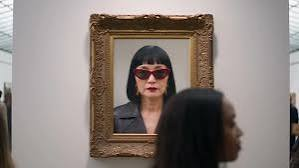
A still portrait can become a short speaking clip for a tutorial, character introduction, family greeting, or social post. The basic process is simple: choose a clear image, prepare a short script or audio file, generate the animation, then review the face and sound together. The result depends less on elaborate prompts than on good source material and a few careful edits.
1. Choose a photo that gives the model a clear face
Use a front-facing portrait with one visible face, even lighting, and a natural expression. The eyes and mouth should be unobstructed. Avoid sunglasses, hands over the face, extreme side angles, heavy shadows, and tiny faces in a wide group photo. A sharp image helps the model locate facial features; a simple background keeps attention on the speaker.
Crop around the head and shoulders if the original image contains a lot of empty space. Keep the full chin and forehead inside the frame. If the photo is blurry or compressed, find a higher-resolution original before trying to sharpen it with filters. Over-processing can create strange edges that become more noticeable after animation.
2. Write for speech, not for the page
Keep the first script to one or two short sentences. Read it aloud and remove phrases that feel stiff. Use punctuation to mark natural pauses, spell out names or unusual terms phonetically when needed, and avoid long lists of numbers. If you already have a recording, use clean audio with little background noise and no music competing with the voice.
Decide whether the image should speak or sing before generating. Speech usually works best with conversational pacing. For singing, choose a short excerpt with a clear vocal line and check that you have permission to use the recording. A clip with too many words or a fast delivery may produce mouth movement that is difficult to follow.
3. Generate the clip and review it in passes
Upload the image, add text or audio, and create a first version with an AI talking photo generator. Start with the shortest useful line rather than a full paragraph. Preview the result once for overall timing, then again while watching the mouth and eyes. Check the beginning and end closely; awkward movement often appears during the first syllable or after the audio stops.
If the voice sounds rushed, shorten the script or use a slower recording. If the mouth shape drifts, try a more clearly front-facing photo and cleaner audio. If the expression feels too animated for the subject, choose a different image or reduce the performance implied by the script. Change one thing at a time so you can tell which adjustment helped.
Tips for a cleaner, more believable result
Keep the clip short
A concise message is easier to sync and easier to watch. Split a longer explanation into several clips instead of asking one portrait to deliver a long monologue.
Match the voice to the image
A calm portrait paired with exaggerated delivery can feel distracting. Choose a voice and pace that suit the person or character, and do not present a generated voice as the real person’s voice without permission.
Check framing and sound on a phone
View the exported clip at the size most people will see it. Confirm that the face is large enough, the audio is audible, and captions are readable on a small screen. Watch once with sound off to see whether the post still makes sense.
Common problems and quick fixes
If the face looks warped, start with a simpler, clearer portrait and avoid extreme angles. If the lips move out of time, use cleaner audio and shorten the spoken line. If pronunciation is wrong, re-record the name or provide a phonetic spelling. If the video feels uncanny, try a more neutral script and expression rather than adding visual effects.
Before publishing, verify that you have the rights to the photo and audio. Get consent before animating another person’s likeness, especially for public or commercial use. Label an AI-generated performance when viewers might mistake it for a real recording. These checks are part of finishing the clip, like checking subtitles or sound levels.
Frequently asked questions
Can I use any portrait
Use a clear image you own or have permission to animate. Front-facing portraits with visible facial features generally provide a better starting point.
Why does the mouth look out of sync
Common causes include noisy audio, fast speech, a long script, or a face that is partly hidden or turned away. Improve the source and test a shorter line.
A simple checklist before sharing
Use a sharp, front-facing photo; keep the script brief; provide clean speech or licensed music; review the full clip with sound and captions; and confirm image and voice permissions. If one part looks wrong, adjust the source or script and generate another short test. That practical loop—prepare, generate, inspect, refine—is the most reliable way to make an AI talking photo viewers can follow.

