


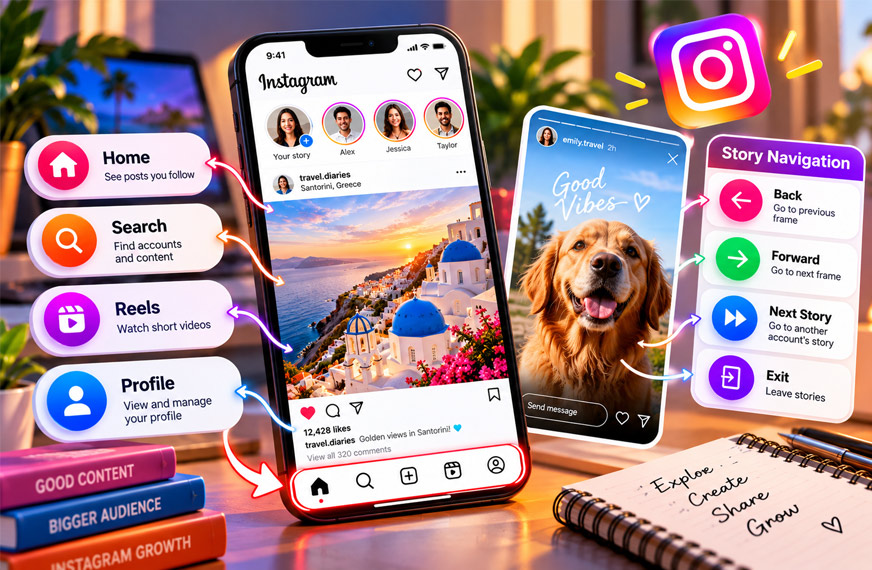
Instagram navigation means how you move around Instagram. It includes the Home feed, Search and Explore, Reels, profiles, and Stories.
The word Navigation can also appear in Instagram Story Insights. Here, it shows how viewers move through your Stories. For example, they may go forward, go back, move to another Story, or leave Stories.
This guide explains both meanings of Instagram navigation. It also explains the main navigation features, Story metrics, common problems, and simple tips.
What Is Instagram Navigation?
Instagram navigation is the way people move from one part of Instagram to another. It includes tabs, icons, menus, buttons, taps, and swipes.
For example, you use Instagram navigation when you open someone’s profile, search for an account, scroll through posts, swipe through Reels, or watch Stories.
The term has two main meanings.
General Instagram navigation means moving around the Instagram app and using its different sections.
Instagram Story Navigation means how viewers move through your Stories. These actions can appear in Story performance data for accounts that have access to Insights.
This difference is important. When someone asks, “What does navigation mean on Instagram?” they may be asking about the app’s layout or about Story Insights.
How Instagram Navigation Works
Instagram uses simple buttons, icons, menus, taps, and swipes to help people move around the app.
You can scroll through your Home feed and tap a username to visit a profile. You can use Search and Explore to find new content. You can also open Reels and swipe to watch more videos.
Stories have their own navigation. You can tap through Story frames or move to Stories from another account.
Instagram changes its app from time to time. Buttons may move, icons may change, and new features may appear. This is why an old Instagram guide may not look the same as the app on your phone.
For example, older guides may show Shop as a main navigation tab. Instagram removed the dedicated Shop tab from its main navigation in 2023.
The layout can also be slightly different depending on your device, app version, account, or features Instagram is testing.
Main Areas of Instagram Navigation
Instagram has several main areas for viewing, finding, and managing content.
Home Feed
The Home feed is one of the main parts of Instagram. It shows posts from accounts you follow and may also show recommended content.
You can scroll through photos and videos. You can also like, comment, share, or save posts when these options are available.
Stories can also be opened from the main Instagram experience. Tap a Story to start viewing its photos or videos.
You can also tap an account name or profile picture on a post to visit that person’s profile.
Search and Explore
Instagram Search helps you find accounts and content.
You can search for people, creators, businesses, and other available results. Instagram may also show suggestions related to your search.
Explore helps you discover content you may not already follow. It can include photos, videos, Reels, and accounts based on your interests and activity.
Search and Explore are useful for finding new creators, businesses, topics, and content.
Some third-party websites claim Instagram lets users upload screenshots to search for similar content. The sources reviewed for this article do not provide reliable proof that this is a standard Instagram feature.
Reels
Reels is Instagram’s short-video section.
You can swipe to move from one Reel to another. You can also like, comment, share, and save Reels when these options are available.
If you find an interesting creator, you can tap their name or profile information to visit their profile.
Instagram also recommends Reels based on your activity and interests. This means different users can see different videos.
You can save useful Reels for later. Saved content can also be organized into collections.
Profile
Your Instagram profile is the main page for your account.
It can show your profile photo, username, name, bio, links, posts, Reels, tagged content, and Story Highlights.
You can edit your information and manage your content from your account. Professional accounts may also have extra tools and performance information.
A clear profile is easier to explore. You can write a simple bio, organize Story Highlights by topic, and pin important posts near the top of your profile.
Instagram changes features over time. Some options shown in older guides may no longer be available or may appear in a different place.
What Does Navigation Mean on Instagram Stories?
Instagram Story Navigation has a more specific meaning.
When people watch your Stories, they may not watch every frame from beginning to end. They can move forward, go back, move to another account’s Story, or leave the Story viewer.
These actions can help show how people move through your Story content.
This information can be useful for creators, businesses, and social media managers. A simple view count only tells part of the story.
For example, one person may quickly move through several Story frames. Another person may go back to see a frame again. Both viewed your Story, but they used it differently.
Story Navigation can therefore help you understand viewer behavior. However, one number alone cannot tell you whether your Story was good or bad.
Instagram Story Navigation Metrics Explained
The main Story Navigation actions are Back, Forward, Next Story, and Exit.
Back
Back means someone returned to an earlier frame in your Story.
They may have missed some text, wanted to see an image again, or needed more time to understand the content.
A high number of Back actions can sometimes mean people found something interesting. However, it can also mean the Story was unclear.
For this reason, Back should be checked together with other Story data.
Forward
Forward means someone moved to the next frame in your Story.
This is normal. Many people tap quickly through Instagram Stories.
A high number of Forward actions does not always mean your content is bad. However, if one frame gets far more Forward taps than your other frames, you may want to check it.
The Story could be too long, repetitive, slow, or easy to understand quickly.
Next Story
Next Story is different from Forward.
Forward means moving to the next frame from the same account. Next Story means leaving the current account’s Stories and moving to Stories from another account.
This metric can help you find possible points where viewers stop watching your Stories.
If many viewers move to the next account at the same frame, review that Story. It may not be holding attention, or viewers may simply have found the information they needed.
Exits
Exit means someone left the Story-viewing experience.
An Exit does not always mean the viewer disliked your Story.
A person may leave to check a message, return to their feed, visit another part of Instagram, close the app, or do something else.
It is better to look for patterns across several Stories instead of judging your content from one Exit number.
How to Read Instagram Story Navigation Insights
Story Navigation Insights can help you understand how viewers use your Stories.
Do not judge your Story from one number. Look at different metrics together.
For example, many Forward taps are not always bad because people often move quickly through Stories. But if one frame gets far more Forward taps than usual, check its text, design, and length.
Back actions can also be useful. People may go back because they found something interesting or because they did not understand it the first time.
Next Story actions may show where viewers move away from your content. Exits can show where people stop watching Stories.
Look for patterns across several Stories. Compare different topics, designs, formats, and Story lengths. This can help you understand what works better for your audience.
Story Navigation vs Other Instagram Metrics
Story Navigation shows how viewers move through your Stories.
Other Instagram metrics tell you different things.
For example, reach can show how many accounts saw your content. Replies can show whether people responded. Link interactions can show whether viewers clicked or tapped a link.
Navigation focuses on viewer movement.
This is why you should look at several metrics together. A Story may have many Forward taps but also receive replies or other useful interactions.
Looking at the full picture gives you better information.
Why Instagram Navigation Matters for Creators and Businesses
Good Instagram navigation makes content easier to find.
A clear profile can help visitors quickly find your posts, Reels, links, and Story Highlights. This can be useful for creators and businesses that use Instagram to share information, products, services, or updates.
Story Navigation Insights can also show how viewers use your Stories.
You can see where people move forward, go back, switch to another Story, or leave Stories.
This information can help you test different content. You might try shorter text, clearer images, fewer Story frames, or a stronger first frame.
However, better navigation does not guarantee more followers, sales, or engagement. It is only one part of using Instagram well.
How to Improve Your Instagram Navigation Experience
Keep your Instagram account simple and organized.
Write a clear bio so visitors quickly understand your account. Use a profile picture that is easy to recognize.
Organize Story Highlights by topic and give them short, clear names.
You can also pin important posts so visitors see them near the top of your profile.
Keep Stories in a clear order. If you are explaining something across several frames, each frame should naturally connect to the next one.
Keep text short and easy to read. You can also use polls, questions, quizzes, and links when they are useful.
Check your Story results regularly. See how viewers move through your content and use that information to improve future Stories.
Common Instagram Navigation Problems
Instagram changes often. This can sometimes make features difficult to find.
Navigation Buttons Have Moved
Instagram may change the position or design of its buttons.
Solution: Update your Instagram app. If an online guide looks different from your app, the guide may be old.
A Feature Is Missing
A feature available to one person may not appear for another person. Availability can depend on the account, app version, device, region, or Instagram testing.
Solution: Update Instagram first. If the feature is still missing, check Instagram’s official help information.
Story Insights Are Hard to Find
Detailed analytics are mainly linked to professional account tools. Personal accounts may not have the same options.
Solution: Check your account type and available professional tools if you need detailed Insights.
Navigation and Story Navigation Are Confusing
Navigation can mean moving around Instagram or viewing Story Navigation data.
Solution: Check where you see the word. If it appears inside Story performance information, it usually refers to how viewers moved through your Stories.
An Old Guide Shows the Shop Tab
Some older guides show Shop in Instagram’s main navigation.
Solution: Remember that Instagram removed the dedicated Shop tab from its main navigation in 2023. Use newer guides when checking the current Instagram layout.
Instagram Navigation and Third-Party Tools
Third-party social media tools can help manage Instagram accounts.
Some tools offer content scheduling, planning, analytics, reports, and account management. The sources reviewed for this article mention tools such as Socinator and Vista Social.
These are outside services. They are not official Instagram navigation features.
Some third-party tools also offer automated likes, follows, comments, messages, or Story viewing. Be careful when using these features. Too much or unauthorized automation may create security or account problems.
Be careful with any service that asks for your Instagram password or promises unusual features.
Some websites also offer anonymous Instagram Story viewing. These services should not be confused with Instagram’s official Story Navigation data.
The sources reviewed for this article also make claims about official anonymous viewing and other special navigation features. There is not enough reliable information in those sources to confirm that these are standard Instagram features.
Common Myths and Confusing Claims
Instagram navigation does not only mean the navigation bar. It can also mean how people move around the app or how viewers move through Stories.
A Forward tap is also not always bad. People often tap through Stories quickly.
An Exit does not always mean someone disliked your Story. The viewer may have left Stories for another reason.
A Back action is not always proof that someone loved your content. They may have gone back because they missed or did not understand something.
Anonymous Story viewers are also different from Instagram Story Navigation. They are usually third-party services.
Finally, be careful with articles claiming Instagram has a new feature without clear proof. Instagram changes regularly, but not every feature mentioned online is an official or widely available Instagram feature.
Tips for Better Instagram Story Performance
Keep your Stories simple and easy to understand.
Put important information where people can see it quickly. Do not turn a short message into many Story frames when one or two frames are enough.
Use clear images and readable text.
If several Stories are connected, put them in a logical order. Make the topic clear in the first frame and continue it naturally.
Polls, questions, quizzes, and links can help when they match the content.
Do not judge your results from one Story. Compare several Stories over time.
Look for frames that often receive more Forward, Next Story, or Exit actions. Also check Back actions and other engagement data.
These patterns can help you understand what your audience finds useful.
Bottom Line
Instagram navigation means how people move around Instagram. It includes the Home feed, Search and Explore, Reels, profiles, Stories, menus, and other parts of the app.
The term also has a special meaning in Story Insights. Story Navigation can show how viewers move through your Stories using actions such as Back, Forward, Next Story, and Exit.
Do not judge your content from one metric alone. A Forward tap is not always bad, and a Back action is not always good.
Look at several metrics and several Stories together. This gives you a clearer idea of how people use your content.
Instagram also changes its app regularly. Current Instagram information is more useful than old screenshots or unconfirmed feature claims.
Frequently Asked Questions
What does navigation mean on Instagram?
Instagram navigation means how you move around the app. It also shows how viewers move through your Stories.
What does Navigation mean on Instagram Story Insights?
It shows what viewers do while watching your Stories, such as going Back, Forward, to the Next Story, or leaving.
What does Forward mean on Instagram Stories?
Forward means someone tapped to see your next Story frame. This does not always mean they disliked your Story.
What does Back mean on Instagram Stories?
Back means someone returned to your previous Story frame. They may want to see it again or may have missed something.
What does Next Story mean on Instagram?
Next Story means someone left your Stories and moved to Stories from another account.
What does Exit mean on Instagram Story Insights?
Exit means someone stopped viewing Stories. It does not always mean your content was bad.
Is a high Forward rate bad on Instagram Stories?
Not always. Many people quickly tap through Stories, so check other metrics too.
Where is the Instagram navigation bar?
The main navigation bar is usually at the bottom of the Instagram app. Its icons may change with app updates.
Explore More:

