


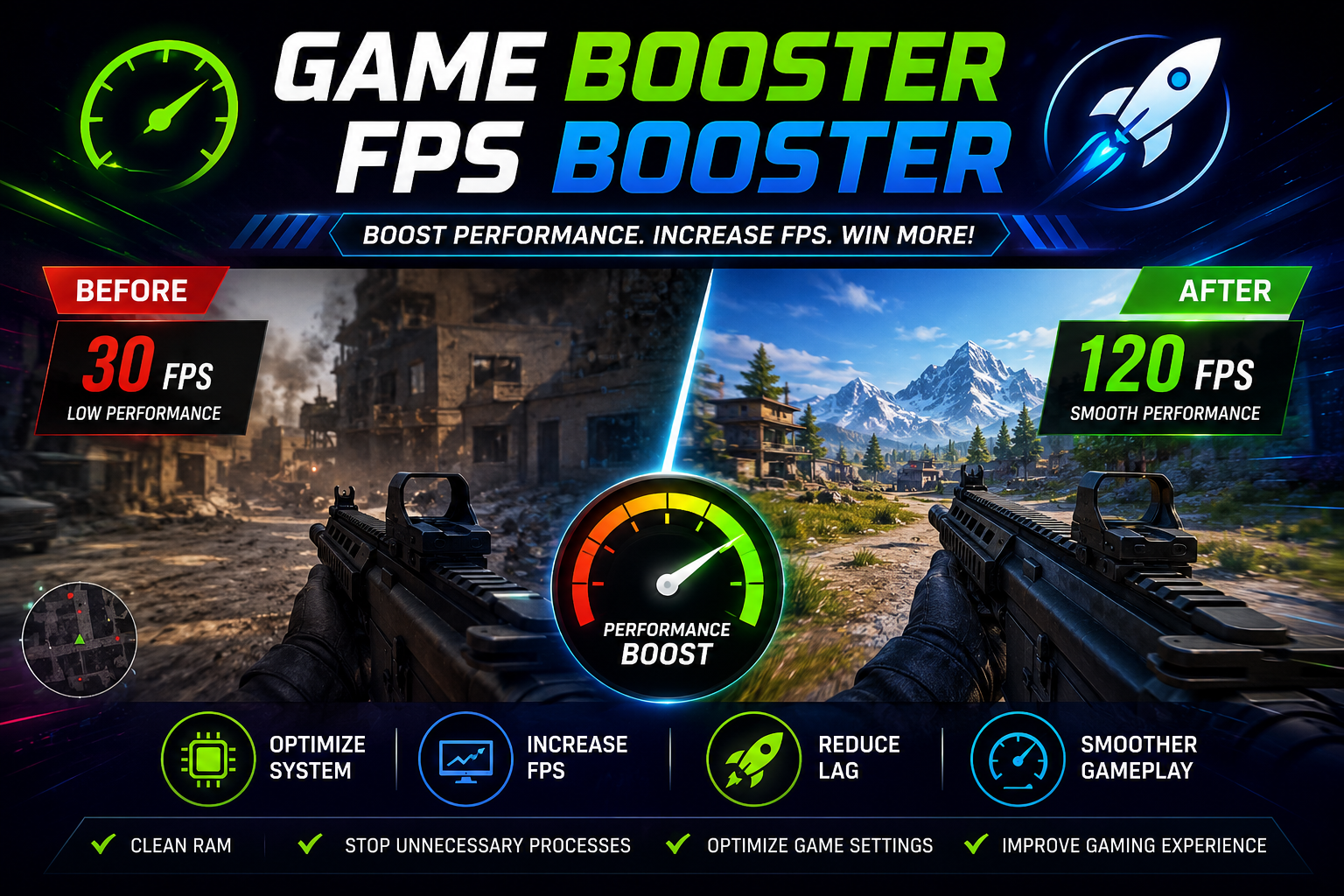
Gaming is more enjoyable when your favorite games run smoothly, respond quickly, and deliver consistent performance. However, lag, stuttering, long loading times, and sudden frame drops can make even an exciting game frustrating. These problems may occur because of limited system resources, background applications, outdated drivers, or hardware limitations.
A reliable Game Booster or FPS Booster may help improve your gaming experience by optimizing certain system settings and reducing unnecessary background activity. Understanding how these tools work can help you choose the right solution and get better performance from your computer without making risky changes.
What Is a Game Booster?
A Game Booster is a software utility designed to prepare your computer for gaming. Depending on its features, it may temporarily close selected background applications, manage startup programs, adjust certain Windows settings, or display system performance information.
When multiple applications compete for CPU time, memory, and storage activity, games may experience interruptions. A Game Booster can help reduce this competition by limiting unnecessary tasks while you play.
However, its effectiveness depends on your computer and the software running in the background. If your PC already has sufficient resources and few unnecessary applications, you might notice little difference after installing a booster.
What Is an FPS Booster?
An FPS Booster focuses on improving frames per second (FPS), which measures how many frames a game displays every second. Higher and more consistent FPS can make gameplay feel smoother, especially in competitive games that require quick reactions.
For example, a game running at 30 FPS may appear less fluid than the same game running at 60 FPS. Higher frame rates can also improve responsiveness when combined with suitable hardware, settings, and display support.
An FPS Booster may help by recommending lower graphics settings, reducing unnecessary background processes, or helping users identify performance bottlenecks. Nevertheless, no software can guarantee a specific FPS increase on every computer.
Game Booster vs. FPS Booster
Although these terms are sometimes used interchangeably, they can describe slightly different purposes.
Game Booster: Primarily helps prepare the system for gaming by managing background activity and selected system settings.
FPS Booster: Primarily focuses on frame-rate performance by helping users adjust graphics options and reduce avoidable performance limitations.
Some applications combine both functions in a single package. When choosing one, focus on its actual features rather than marketing claims that promise instant speed improvements.
Benefits of Using a Game Booster
A Game Booster can offer several practical advantages when used correctly.
1. Reduced Background Activity
Applications running in the background may consume processing power and memory. Closing unnecessary programs before launching a demanding game can free up resources and reduce interruptions.
2. Better Resource Management
Some tools make it easier to identify programs consuming significant CPU or RAM resources. This information helps you decide which applications can safely be closed during a gaming session.
3. Faster Game Preparation
Certain boosters provide shortcuts for launching games, applying saved profiles, or reviewing performance settings. These features can make routine gaming preparation more convenient.
4. Improved Consistency
Reducing unnecessary background activity may help prevent occasional stutters on systems with limited resources. However, consistent performance also depends on cooling, hardware capability, and game optimization.
5. Convenient Performance Monitoring
Some gaming utilities display CPU usage, memory consumption, temperatures, and frame rates. Monitoring these figures can help you understand why a particular game is not running as expected.
How to Improve FPS Without Spending Money
You do not necessarily need a paid FPS Booster to improve your gaming experience. Several practical adjustments can make a meaningful difference.
Update Your Graphics Drivers
Graphics drivers help your operating system and games communicate with your GPU. Installing compatible updates from NVIDIA, AMD, Intel, or your computer manufacturer’s official website may resolve bugs and improve compatibility with certain games.
Adjust Graphics Settings
If your game runs slowly, reduce demanding options such as shadows, reflections, ambient occlusion, and ray tracing. Lowering the resolution or selecting a suitable performance preset may also increase FPS.
Close Unnecessary Applications
Before gaming, close applications you do not need, particularly those using substantial CPU or memory resources. Avoid ending unfamiliar Windows processes because some are necessary for system stability.
Enable Game Mode
Windows includes a Game Mode feature designed to help prioritize the gaming experience. You can find it in Windows Settings under Gaming. Its impact varies by system, but it is a sensible setting to review.
Check Your Computer’s Temperature
Excessive heat can cause a CPU or GPU to reduce its operating speed. Keep ventilation areas clear, clean dust carefully, and ensure that cooling fans work properly. If temperatures remain unusually high, investigate the cooling system.
Use Appropriate Power Settings
On laptops, battery-saving modes can limit performance. When appropriate, connect your charger and select a suitable power mode. Follow the manufacturer’s recommendations to avoid excessive heat or unnecessary power consumption.
How to Choose a Safe Game Booster
Not every Game Booster provides useful improvements. Some applications make exaggerated promises, bundle unwanted programs, or request unnecessary permissions.
Before downloading a booster, consider the following points:
- Choose software from a reputable developer.
- Review its features and privacy policy.
- Avoid programs promising guaranteed double or triple FPS.
- Check whether the utility requires administrator access and why.
- Download applications from official websites or trusted app stores.
- Avoid tools that disable essential Windows services without a clear explanation.
- Create a restore point before making significant system changes.
A trustworthy utility should explain what it changes and allow you to reverse those changes when possible.
Can an FPS Booster Increase Gaming Performance on Every PC?
No. Results depend on the cause of poor performance.
If background applications consume too much memory, a Game Booster may help reduce competition for resources. If graphics settings are too demanding, lowering them may produce a noticeable FPS improvement. Updating a problematic driver can also resolve certain issues.
However, if your graphics card cannot handle a game’s requirements, a booster cannot turn it into a more powerful GPU. Similarly, insufficient RAM, slow storage, network latency, and overheating require different solutions.
It is also important to distinguish FPS from internet lag. Low FPS is generally related to rendering or system performance, while high ping and packet loss are network problems. A conventional FPS Booster will not necessarily fix an unstable internet connection.
Conclusion
A good Game Booster can simplify gaming preparation, reduce unnecessary background activity, and help you monitor system resources. An effective FPS Booster may also help you identify suitable graphics settings and improve frame-rate consistency.
For the best results, combine sensible software optimization with updated graphics drivers, appropriate in-game settings, proper cooling, and regular system maintenance. Avoid utilities that promise unrealistic results, and test changes one at a time so you can identify what actually improves performance.
With the right approach, you can make gaming smoother, reduce avoidable interruptions, and enjoy your favorite titles without purchasing unnecessary optimization software.

