


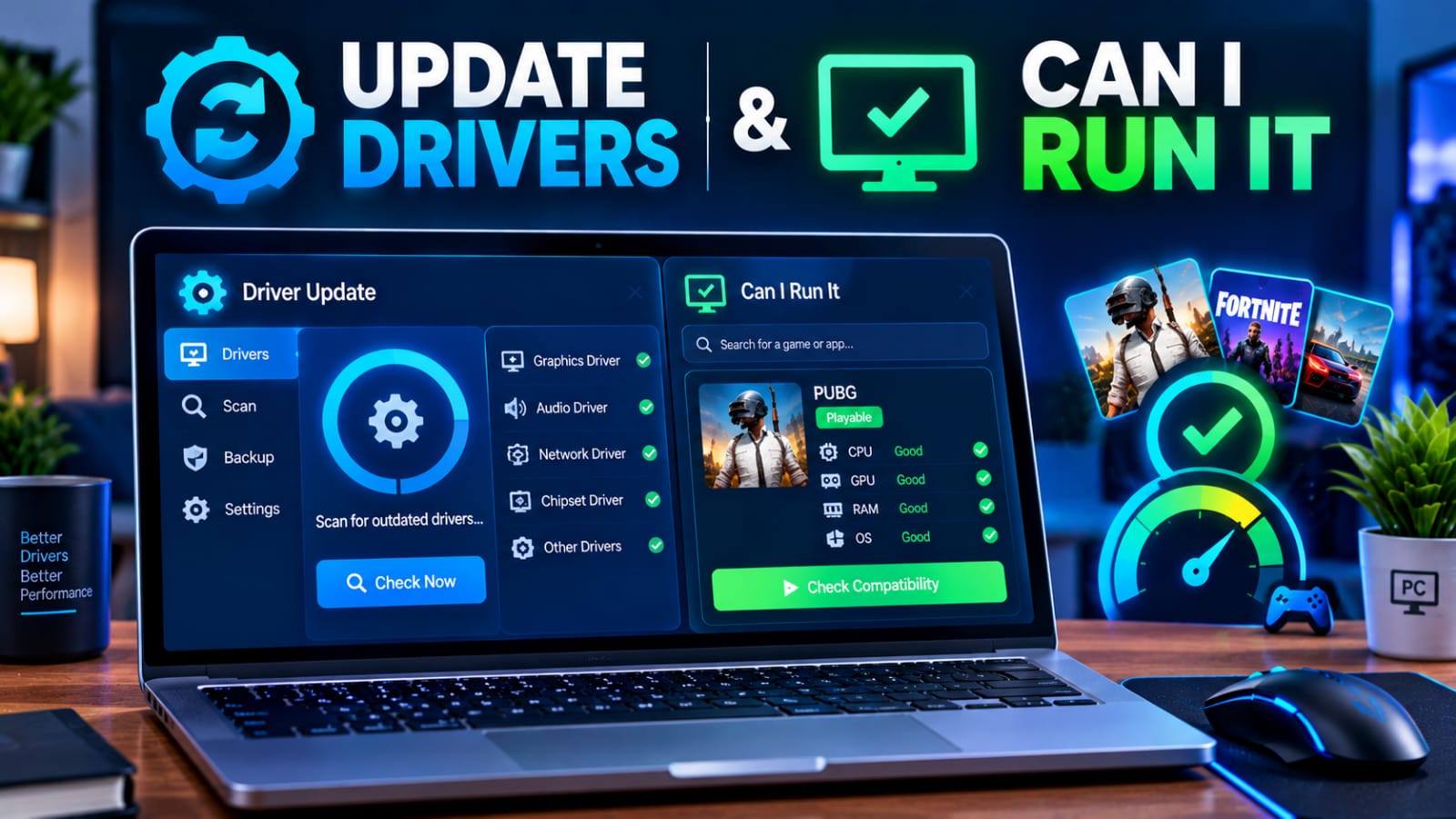
You checked the system requirements before buying a new game. Your specs cleared the bar, maybe even hit “recommended” instead of just “minimum.” And yet, the game still stutters, loads slowly, or just doesn’t feel as smooth as it should. Meeting the listed requirements and actually getting good performance are two different things, and the gap between them usually comes down to one overlooked factor: software, not hardware.
Checking Compatibility Is Only the First Step
Before installing anything demanding, confirming your hardware can handle it is the obvious first move. This is where a Can I Run It tool earns its place in your routine. Instead of manually comparing your CPU, GPU, RAM, and storage against a list of technical specifications, a dedicated checker scans your system automatically and tells you exactly where you stand against a game’s minimum and recommended requirements.
It’s a quick, reliable way to avoid an obvious mismatch. If your GPU falls well short of what a game needs, you’ll know immediately, before spending money or downloading dozens of gigabytes only to find out the hard way.
Using a Can I Run It checker answers the most basic question clearly: will this even launch, and will it run at a baseline level on your system. What it can’t tell you is why a technically compatible PC still underperforms once you’re actually playing.
The Compatibility Trap
Here’s where a lot of frustration comes from. Passing a compatibility check only confirms your hardware is theoretically capable, not that it’s actually performing at that capability in practice. Two PCs with identical specs can behave completely differently depending on what’s happening at the software level underneath.
This is a common blind spot. People assume that once their hardware clears the requirements, performance issues must be the game’s fault, or a sign they need to upgrade further. In reality, a huge share of post-purchase disappointment traces back to something far simpler and far cheaper to fix.
The Software Layer Most People Forget
Drivers are the translation layer between your operating system and your physical hardware. Your GPU might be perfectly capable on paper, but if the driver managing it is outdated, your system may never actually reach the performance that hardware is rated for.
This matters more than people expect, because driver updates aren’t just routine maintenance, they often include specific optimizations for newly released games. Developers and GPU manufacturers work together ahead of major releases, and a driver that hasn’t been refreshed in months may be missing exactly the kind of tuning a new title depends on.
Symptoms of an outdated driver often masquerade as hardware limitations:
- Stuttering or inconsistent frame delivery despite meeting specs
- Lower-than-expected frame rates in newly released titles
- Graphical glitches or visual artifacts that seem to appear randomly
- Crashes during demanding scenes that a capable GPU shouldn’t struggle with
The fix is one of the simplest in all of PC maintenance: update drivers regularly, rather than waiting until a specific game feels broken. Compatibility tells you what your hardware can theoretically do; an updated driver is what lets it actually do it.
Making Driver Maintenance Actually Happen
Knowing drivers matter and keeping up with them in practice are two different challenges. Manually checking manufacturer websites for every component, GPU, chipset, network adapter, and more, is tedious enough that most people simply don’t do it consistently, and driver releases rarely announce themselves in any way users notice.
This is where a tool like Driver Booster removes the friction. It scans your entire system, identifies outdated or missing drivers across your hardware, and updates them from a single place, so staying current doesn’t depend on remembering to check manually every few months.
Combining Both Checks for a Realistic Picture
Neither check tells the full story on its own. A compatibility check confirms your hardware is theoretically capable. A driver update confirms that capability is actually being delivered. Used together, they give you a genuinely accurate read on what to expect before you commit time or money to a new release.
A practical routine looks like this:
- Run a compatibility check before buying, to confirm your hardware can handle the game at all.
- Update your drivers before launching anything new, especially around major releases known to benefit from fresh driver optimizations.
- If performance still feels off despite passing both checks, look at background processes, thermal throttling, or other system-level factors rather than assuming the hardware itself is inadequate.
- Repeat the driver check periodically, not just once, since new updates continue rolling out well after a game’s launch.
Final Thoughts
A PC that meets the requirements on paper doesn’t automatically mean a smooth experience in practice. Compatibility and performance depend on different things, hardware capability on one side, and whether your software is actually letting that hardware perform on the other. Checking both before writing off a game, or your PC, as underpowered is a far more reliable way to figure out what’s actually going on, and it usually costs nothing but a few minutes.

