


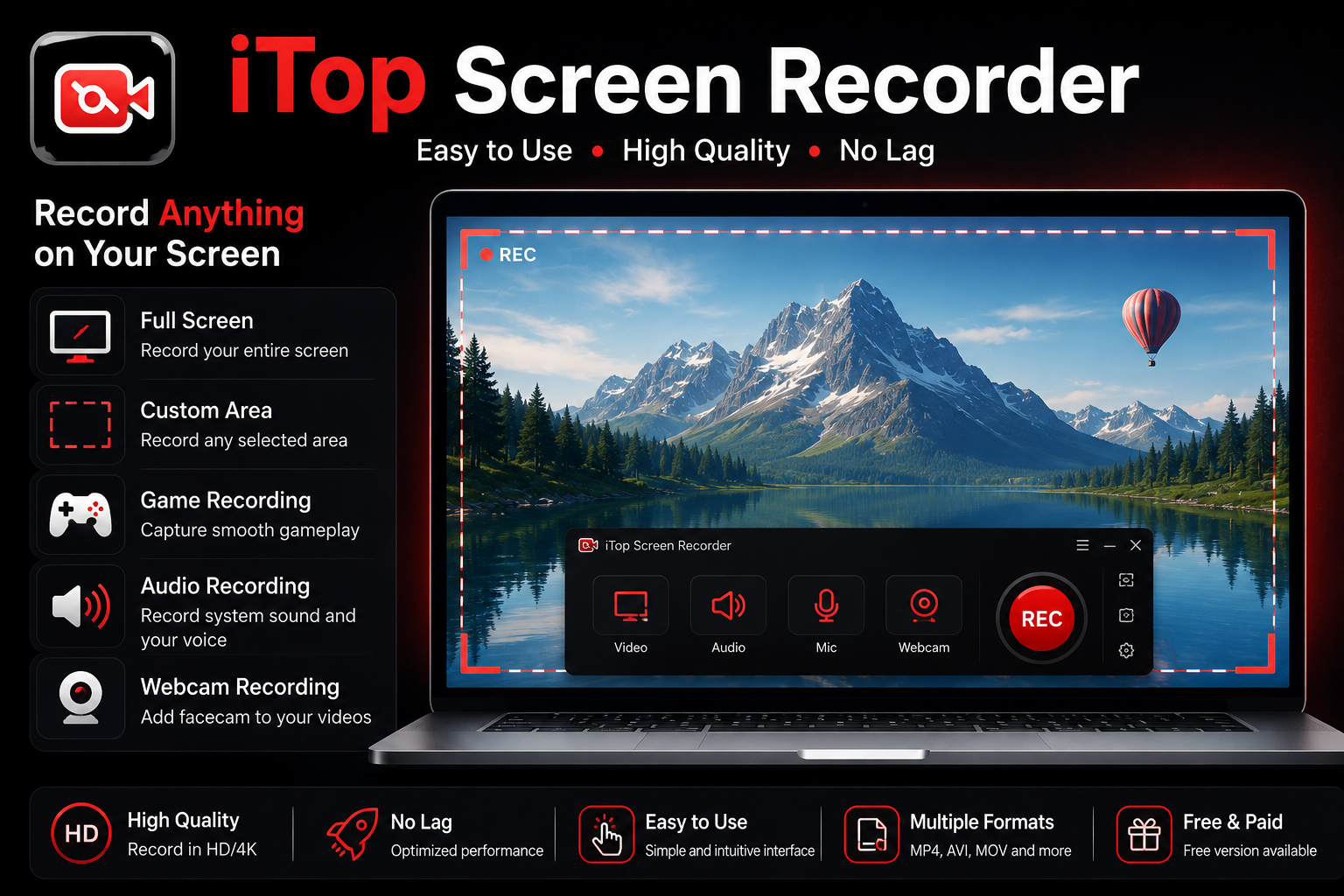
Screen recording has become an essential tool for students, professionals, content creators, and gamers. Whether you want to create tutorials, record online meetings, capture gameplay, or explain a technical problem, a reliable screen recorder can make the process much easier. One tool that users may consider for these tasks is iTop Screen Recorder.
With a suitable screen recording application, you can capture activities on your computer, save important information, and create videos for sharing or future reference. In this guide, we will explore the features of iTop Screen Recorder, its potential benefits, how to record your screen, and what to consider when choosing screen recording software.
What Is iTop Screen Recorder?
iTop Screen Recorder is a desktop application designed to capture on-screen activities and save them as video recordings. Depending on the version and available features, users may be able to record their desktop, selected windows, applications, and gameplay.
A screen recorder can be useful for people who need to demonstrate software, prepare educational content, or create step-by-step instructions. Instead of explaining every action through written messages, you can show the process directly in a video.
For example, a teacher can record a lesson, a student can capture a software demonstration, and a gamer can save gameplay footage for editing or sharing online.
Before installing iTop Screen Recorder check its official website for current system requirements, supported recording options, and licensing details.
Key Features of a Screen Recorder
The features available in a recording application depend on its version and edition. However, several capabilities are particularly useful when choosing a screen recorder.
1. Screen and Window Recording
A good screen recorder allows users to capture their entire desktop or a selected area. Recording a specific window can be convenient when you want to demonstrate one application without showing unrelated desktop activity.
This flexibility makes screen recording suitable for tutorials, presentations, troubleshooting guides, and software demonstrations.
2. Audio Recording
Audio can make a recording much easier to understand. Depending on the supported configuration, users may be able to capture microphone input, computer audio, or both.
Microphone recording is useful for narration, commentary, and online lessons. System audio can help capture sounds produced by applications, presentations, or games.
Before recording, test the audio settings to make sure your voice is clear and unwanted background noise is minimized.
3. Gameplay Recording
Gamers often use screen recording software to capture matches, tutorials, walkthroughs, and memorable moments.
When evaluating iTop screen recorder for gaming, consider the supported frame rates, resolution options, hardware acceleration, and impact on system performance. Recording demanding games may require a capable processor, sufficient memory, and a suitable graphics card.
The smoothness of the final video depends on both the recording software and the computer’s hardware.
4. Video Quality Options
Recording resolution affects the clarity and file size of a video. Higher resolutions can preserve more detail, while lower resolutions may produce smaller files and require fewer system resources.
Choose settings according to your purpose. A basic software tutorial may not require the same recording quality as a high-resolution gaming video.
It is also worth checking the available output formats and quality controls before beginning a long recording session.
5. Editing and Sharing
Some screen recording applications include basic tools for trimming clips, adjusting recordings, or preparing videos for sharing. Other workflows require a separate video editor.
If you plan to publish tutorials on YouTube or share demonstrations with colleagues, consider how easily the recorded files can be edited and exported.
Check the features included in your particular version instead of assuming that every editing function is available in every edition.
How to Record Your Screen Using iTop Screen Recorder
Getting started with screen recording is usually straightforward. The exact interface may vary between software versions, but the general process follows these steps.
Step 1: Download the Software
Visit the official iTop website and locate the screen recorder download page. Confirm that the application supports your operating system and review any installation requirements.
Step 2: Install and Open the Application
Run the installer and follow the instructions. After installation, open the program and become familiar with the available recording controls.
Step 3: Choose the Recording Area
Select the full screen, a specific window, or a custom recording region, depending on the available options and your needs.
Step 4: Configure Audio Settings
Choose whether to record microphone audio, system sounds, or both. Make a short test recording to confirm that the audio levels and video capture work correctly.
Step 5: Start Recording
Press the recording button and perform the actions you want to capture. Close unnecessary applications and silence unwanted notifications before starting to maintain a professional presentation.
Step 6: Stop and Save the Video
Stop the recording when you finish. Review the saved video to check its picture quality, sound, and overall completeness before sharing it.
Benefits of Using a Screen Recorder
A screen recorder can support many everyday activities.
Education: Teachers can prepare recorded lessons, while students can save demonstrations for revision.
Work and Communication: Professionals can create product demonstrations, explain technical procedures, and provide visual instructions to teammates.
Gaming: Players can capture gameplay, review their strategies, and create videos for gaming communities.
Technical Support: A recording can show an error message or reproduce a problem more clearly than a written description.
Content Creation: Video creators can prepare software tutorials, application reviews, and instructional content for their audiences.
These benefits make screen recording useful for both personal and professional projects.
Is iTop Screen Recorder Suitable for Beginners?
Beginners should look for a recording tool with clear controls, understandable audio settings, and a straightforward saving process.
Before choosing iTop screen recorder, consider your recording needs, available storage, computer specifications, and budget. If you only need occasional recordings, a simple free tool may be sufficient. If you regularly create gaming videos or professional tutorials, you may prefer more advanced recording controls.
Also review whether your intended features require a paid license. Free and paid editions of software can have different limitations, so verify the current terms before making a purchase.
Tips for Better Screen Recording Quality
You can improve your recordings by preparing your computer and recording environment.
- Close unnecessary applications to reduce resource usage.
- Select a resolution appropriate for your intended audience.
- Test microphone and system audio before recording.
- Disable distracting notifications when appropriate.
- Keep enough free disk space for video files.
- Record a short sample before capturing a lengthy session.
- Save important recordings in an organized folder.
- Obtain permission before recording private meetings or other people’s content.
For smoother gameplay recordings, monitor CPU and GPU usage and reduce demanding game settings if necessary.
Is a Screen Recorder Safe to Use?
Safety depends on where you download the software and how you configure it. Download iTop screen recorder from its official website or another trusted source, review installation options, and avoid bundled applications you do not need.
Screen recording software may request access to your microphone, screen, or other system resources. Review these permissions and enable only the access necessary for your intended tasks.
You should also respect privacy, copyright, and workplace policies when recording meetings, presentations, or protected content.
Conclusion
iTop screen recorder is an option worth evaluating if you need software to capture desktop activities, create tutorials, record presentations, or save gameplay footage. Its suitability depends on the features available in your version, your computer’s capabilities, and the type of videos you want to produce.
Before installing any screen recorder, review its official specifications, licensing options, and privacy information. With suitable recording settings and a little preparation, you can create clear, useful videos for education, work, gaming, and content creation.
Choosing a screen recorder that matches your needs will help you build a more efficient recording workflow and produce videos that are easier for others to understand.

